403 Errors
The PSI development instance (
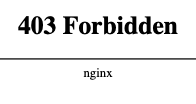
To solve this, you need to connect via an allowed system. The best way to set this up for operators is to configure a SOCKS5 proxy.
Intended audience
This is intended for operators trying to test the ingestor against the development SciCat instance (https://discovery.development.psi.ch).
Prerequisites
You will need ssh access to an allowed server. This will usually be the ingestor server, which should have been whitelisted by PSI already.
Start the proxy
SSH with the command line
If you can SSH to the ingestor at the command line, starting a SOCKS5 proxy can be done easy with the -D argument:
ssh -D 9999 ingestor.example.com
This can also be configured in ~/.ssh/config so that it is automatically enabled when you connect to the ingestor:
Host ingestor.example.com
    DynamicForward 9999
PuTTY (Windows)
If you use PuTTY to connect to the ingestor server, add D9999 in the Connection/SSH/Tunnels section. See the PuTTY docs or numerous online tutorials.
Enable it in your browser
Your browser must now be configured to use the SOCKS5 proxy. This can be done several ways, but we recommend the FoxyProxy browser extension, available for Firefox, Chrome, and Edge
After installing the add-on, add a new proxy.
- Title: OpenEM
- Type: SOCKS5
- Hostname: localhost
- Port: 9999
After adding the proxy, make sure it is enabled (the FoxyProxy menu bar icon should be colored to match the OpenEM proxy entry).
Testing
Test by going to https://discovery.development.psi.ch.